
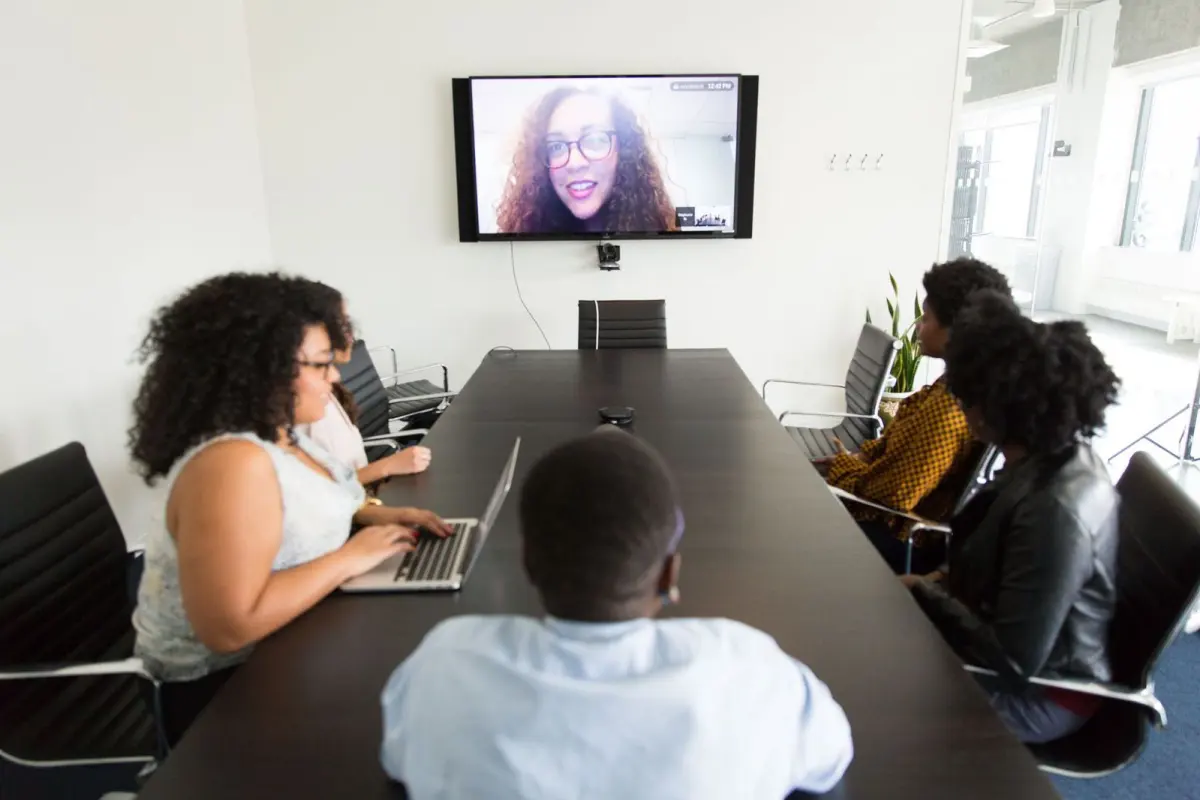
Worried a video call will go sideways on the day? Here is how to plan a virtual event: pick the platform early, book captions, rehearse, and give guests a clear way to ask for help.
This guide is part of the wider event planning collection on this site.
| Key fact | Value |
|---|---|
| Planning window | 1 to 2 months before the event (approximately) |
| Final preparation window | 1 to 2 weeks before the event (approximately) |
| Wait for captioning or interpreting requests at one university | Several weeks |
| Audio channels suggested for a bilingual event | 3 (English, French and multilingual) |
| Federal accessibility aim in Canada’s toolkit | Barrier-free Canada by January 1, 2040 |
These figures come from the Government of Canada’s accessible virtual events guide and the UW–Madison accessible events guide. They can change, so check the source before you rely on them.
Choose the format and platform first
Decide whether the event runs live or pre-recorded, because almost every other choice follows from it. McGill’s accessibility guide calls a live, fixed-time event synchronous and lists clear trade-offs for it (McGill Equity guide).
- Strength: live events can provide opportunities for real-time, remote engagement between participants, such as breakout rooms.
- Limit: the event is fixed to a certain date and time, which can shut out people who cannot join in the moment.
- Limit: live captioning is subject to mistakes, typos and incorrect transcription, although this can be corrected for recordings.
A pre-recorded, or asynchronous, event flips those trade-offs. According to the same McGill guide, content can be accessed at the participants’ own pace and in their own time, and transcripts can be polished before publishing, but there is limited engagement between presenter and participants.
Before you book anything, ask the blunt question the Government of Canada’s toolkit raises: consider if it would be more productive to replace the event with an email (Government of Canada toolkit). If a gathering truly needs faces and voices, carry on.
McGill’s chart compares three main web conferencing platforms: Zoom, Microsoft Teams and WebEx. A few differences matter for guests:
- Chat: the chart says the chat feature cannot be turned off in Microsoft Teams.
- Captions: WebEx has no built-in live captioning, but you can assign a closed captioner.
- Sign language interpreters: in Zoom the interpreter must be assigned as a panelist by the organizer, while in Teams other video screens shrink to thumbnail size when someone is sharing their screen.
The chart notes that, as of September 2020, Zoom had added features that let users pin multiple videos to the screen (McGill Equity guide). Platforms change often, so check each one’s present feature list before you commit.
Build a timeline that works backwards from event day
The Government of Canada’s toolkit suggests a simple roadmap. It puts the planning stage at about 1 to 2 months before the event and the get-ready stage at about 1 to 2 weeks before it, and it adds that the guide is not prescriptive (Government of Canada toolkit).
- Plan: settle the language, the virtual platform, who does which role, which accommodation services you will offer, how to make all event material accessible, and how to invite attendees.
- Get ready: prepare scripts in advance for the host, make sure presenters perform with accessibility awareness and, if necessary, conduct a dry run.
- Run the event: test the equipment, set up interpreters before the start, read out the recommended attendee etiquette, and stop, acknowledge and rectify accessibility mishaps on the fly.
- Follow up: send recap content such as notes and recordings, respond to post-event questions and collect feedback.
The same toolkit says the more time you give yourself to plan an event, the better. Work back from your date and write each stage into a shared checklist.

For the general order of tasks that applies to any gathering, read how to plan an event step by step alongside this page.
Assign roles, language and presenter materials early
McGill recommends a point person who monitors emails, chats and messages during the event to respond to access issues. This person should have the power to interrupt the event and modify the settings, and you should announce their role at the start (McGill Equity guide).
Presenters need clear instructions too. UW–Madison advises you to ask presenters about their accessibility needs and to give them a due date for their materials, so the files can reach participants in advance of the event (UW–Madison guide).
If your guests speak more than one language, decide early how you will handle it. The Canadian toolkit says that when possible you should schedule two separate sessions, one in French and one in English, because this simplifies interpretation and captioning. For a bilingual single session, it says there should ideally be three audio channels: English, French and multilingual (Government of Canada toolkit).
How do you make a virtual event accessible?
Start at the invitation. McGill suggests including question(s) on the registration form for participants to signal an accessibility need, plus a short statement telling guests how to get in touch with you (McGill Equity guide). The Canadian toolkit goes further and says events should be inclusive by default, rather than requiring participants to make accommodation requests.
Book live captioning or sign language interpreting early. UW–Madison asks hosts to make that request immediately after determining the event date and time, and warns that filling requests can take several weeks (UW–Madison guide). That is one university’s service, but the lesson holds for any provider: short notice can mean no cover.
Budget realistically. The same guide says most accommodations do not cost money, although captioning and sign language interpreting can have a cost.
Slides and handouts are a common weak spot. UW–Madison lists what accessible materials look like:
- They are well structured, so screen readers can read them.
- They are high contrast, which helps users with low vision, color blindness, and/or those in low contrast settings.
- They have a text equivalent for all visual content such as images and diagrams.
- They use plain language and spell out acronyms to support comprehension.
The Canadian toolkit lists barriers that disabled participants report in virtual events, including presenters speaking too quickly, which causes interpreters to struggle or skip parts of the speech. It also says the Accessible Canada Act aims for a barrier-free Canada by January 1, 2040, and that this includes information and communication technologies like virtual event platforms (Government of Canada toolkit). Rules differ by country, so treat that as context rather than legal advice.
What should you do on the day?
Test your equipment and any interpreter setup before guests arrive, then open by reading out the recommended attendee etiquette. The Canadian toolkit also suggests closing the event by telling attendees how to contact you and give feedback.
Presenters can make a big difference with small habits. UW–Madison recommends speaking at a slower pace and describing the information on each slide, including images, headings and graphs (UW–Madison guide). That helps blind guests, people with low vision and anyone who is a non-native speaker.
Run the question-and-answer period with care:
- Remind people to state their name when they speak.
- Repeat each question and make sure the audience understands it before answering.
- Allow multiple ways to take part, such as a raised hand icon, chat or unmuting.
Pace matters too. McGill notes that virtual meeting fatigue is real and that breaks are needed in virtual events, just as in-person ones. The Canadian toolkit adds that some people find it hard to keep track of a text chat and the presentation at the same time, so give the chat to a dedicated helper rather than expecting the speaker to watch it.
Be open about what you expect. UW–Madison says to inform participants about the expectations of engagement, such as whether cameras must be on, so they can take care of themselves in light of those expectations.
Decide on recording and follow up afterwards
McGill says deciding whether to record a live event is a decision you should make at the outset, and participants need to be made aware of it before and at the event. It also warns that recording sessions can dissuade people’s participation, so you might record a presentation but switch the recording off for the Q&A (McGill Equity guide).
Afterwards, the Canadian toolkit recommends sending recap content like notes and recordings to attendees and collecting feedback from participants to improve. McGill also suggests a shared note-taking document that all participants can edit, with a moderator, which creates a back channel where guests support one another.
If you are hosting a celebration rather than a meeting, how to plan an engagement party is a natural companion read.
Frequently asked questions
How far ahead should you start planning?
Show answer
The Government of Canada’s toolkit suggests starting about 1 to 2 months before the event and getting ready about 1 to 2 weeks before it. It also says the more time you give yourself, the better.
Should you record a live virtual event?
Show answer
Decide at the outset and tell participants before and at the event, as McGill advises. Recording can discourage people from speaking, so consider leaving the question-and-answer part unrecorded.
Can you rely on live captions?
Show answer
McGill says live captioning is subject to mistakes, typos and incorrect transcription, although recordings can be corrected. The Canadian toolkit also lists unreliable captions among problems disabled participants report, so test captions in a dry run.
Do accessibility features cost a lot?
Show answer
UW–Madison says most accommodations do not cost money. Captioning and sign language interpreting can have a cost, so budget for them early.
When is an email better than an event?
Show answer
The Canadian toolkit says to consider if it would be more productive to replace the event with an email. If no live discussion or shared moment is needed, a written update may serve guests better.